

Explainer: GMX’s Redesigned Trading Interface
Upgrades to the management of margin, leverage, and conditional orders
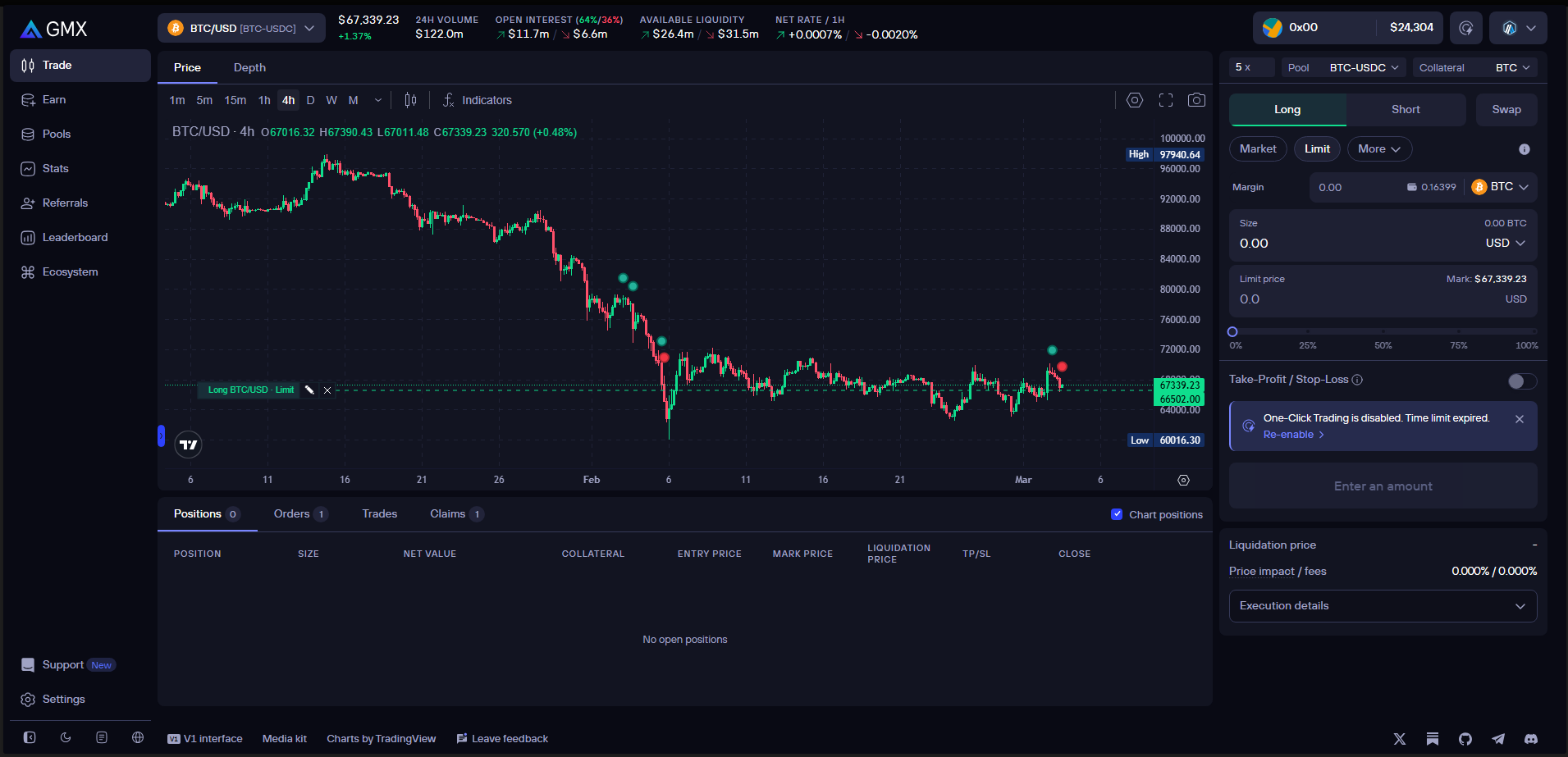
This week, GMX has introduced a redesigned Trade panel to simplify and enhance the trading experience. These updates align the interface with common industry standards, and prepare the platform for the upcoming Cross-Margin functionality.
Leverage Controls Relocated to the Header
Users now adjust their desired leverage with the Leverage Selector in the header, at the top-left of the trade box. The leverage slider has been moved inside this Leverage Selector; click the box to reveal it. The multiplier numbers under the slider are clickable, for easy fine-tuning.
The field previously labeled “Pay” has been renamed to “Margin”. It serves the same purpose as before — specifying the collateral amount used to open a position — but the new terminology better matches industry standards and reduces confusion.
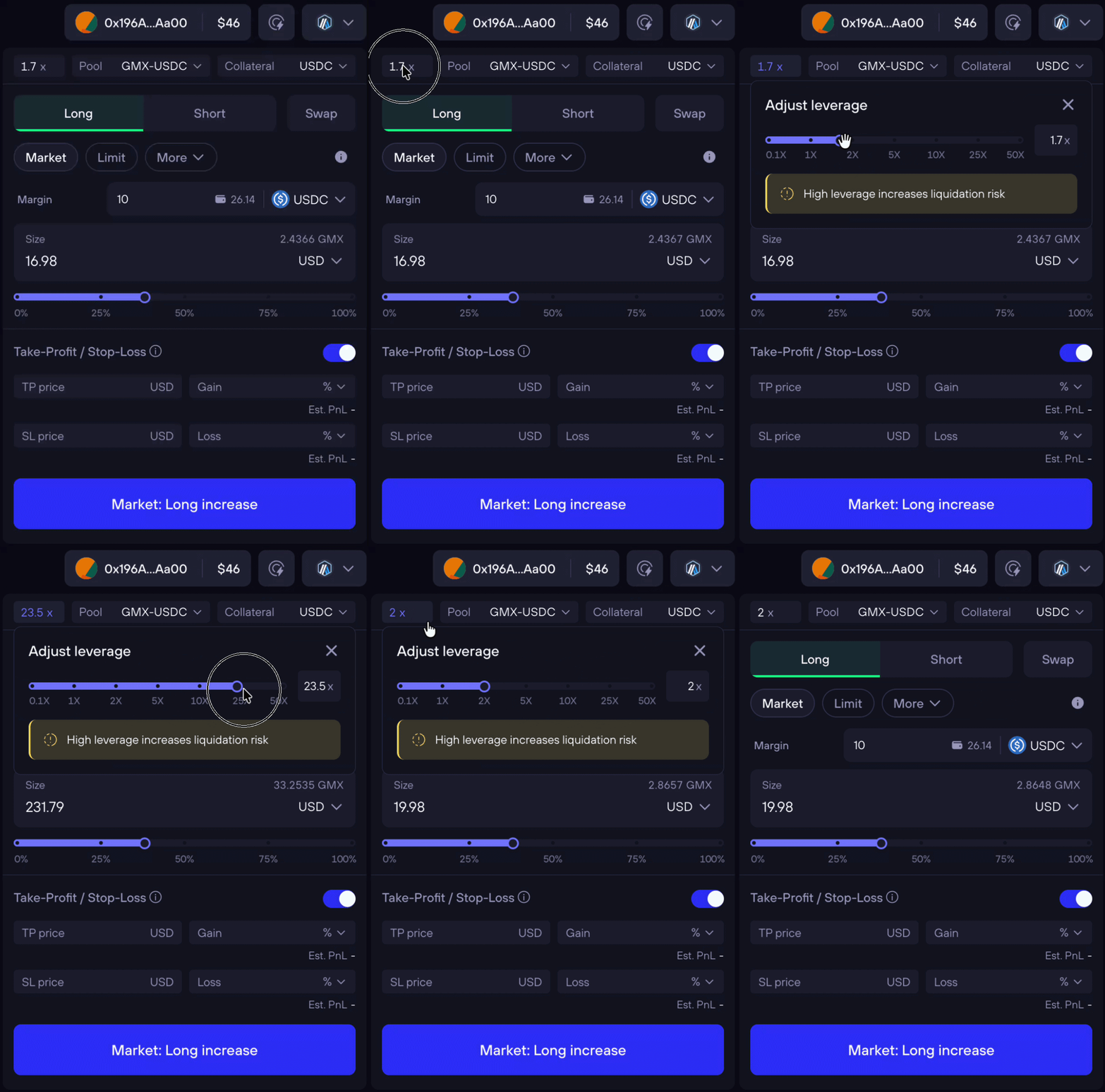
Instead of indirectly adjusting position size through leverage, the trade panel now features a Size slider. The Size slider lets you choose your position size as a percentage of your margin, making the sizing process clearer and more intuitive.
You can also toggle the Size display between USD value and token amount, depending on your preferred view.

Enhanced Take-Profit and Stop-Loss Controls
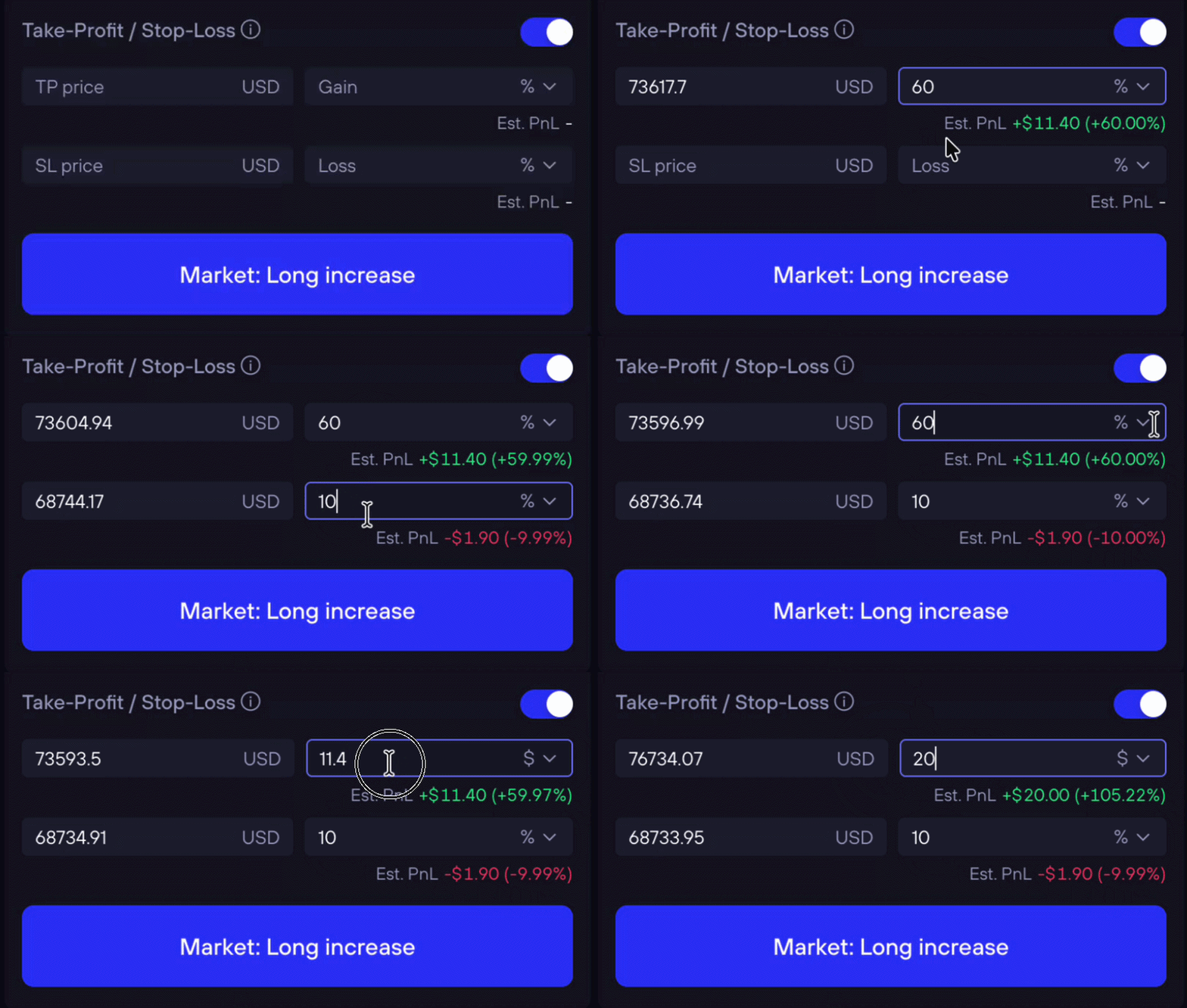
Setting a Take-Profit (TP) or Stop-Loss (SL) order when opening a position has become more flexible. You can set your profit or loss targets as percentages of the position’s value, which makes risk management easier and more transparent.
Multiple TP/SL Management
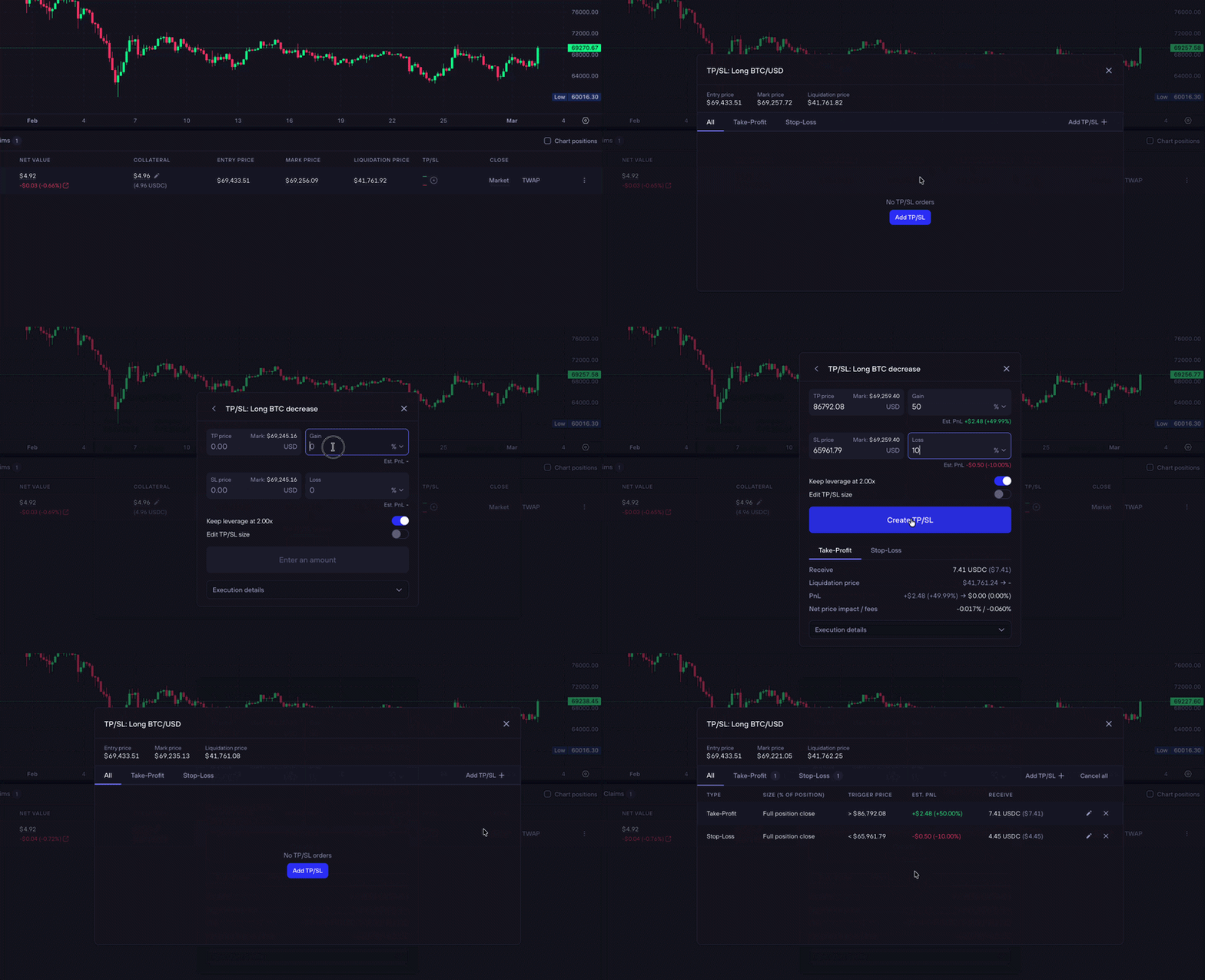
Managing multiple Take-Profit or Stop-Loss orders is now more straightforward thanks to a dedicated TP/SL column and modal, accessible from the Positions tab.
Here, you can click the circled plus (⊕) to add, edit, or review multiple TP/SL levels for an open position:
Improvements to the Positions Table
Users can now toggle between displaying their position’s size in either USD value or token amount directly in the positions table.
Additionally, the previous “Close” button has been replaced with two distinct actions:
Market — close immediately at the market price
TWAP — close gradually using time-weighted execution
Both options include a size percentage slider, allowing you to easily close part or all of a position.

Receive Live Support
Live chat support is now available for you at any time in the GMX dapp.
If you have questions, need assistance, or want to learn more about a feature, simply send us a message by clicking the Support button in the main menu.
Your feedback is valuable and helps us further improve the product for everyone.
